How to use Darbo24
A step-by-step guide with screenshots: sign-up, company and employees, roles, requests, CRM, quotes from measurements, orders and payments, warehouse, photos from site, money, team and the mobile app.
01 / 15
Darbo24
User guide
How to use Darbo24
From sign-up to your first paid order — 12 steps, about 15 minutes.
The screenshots show a fictitious company, SIA Demo Logi.
02 / 15
03 / 15
Step 2 · Settings
Company details, VAT (PVN) and price lists
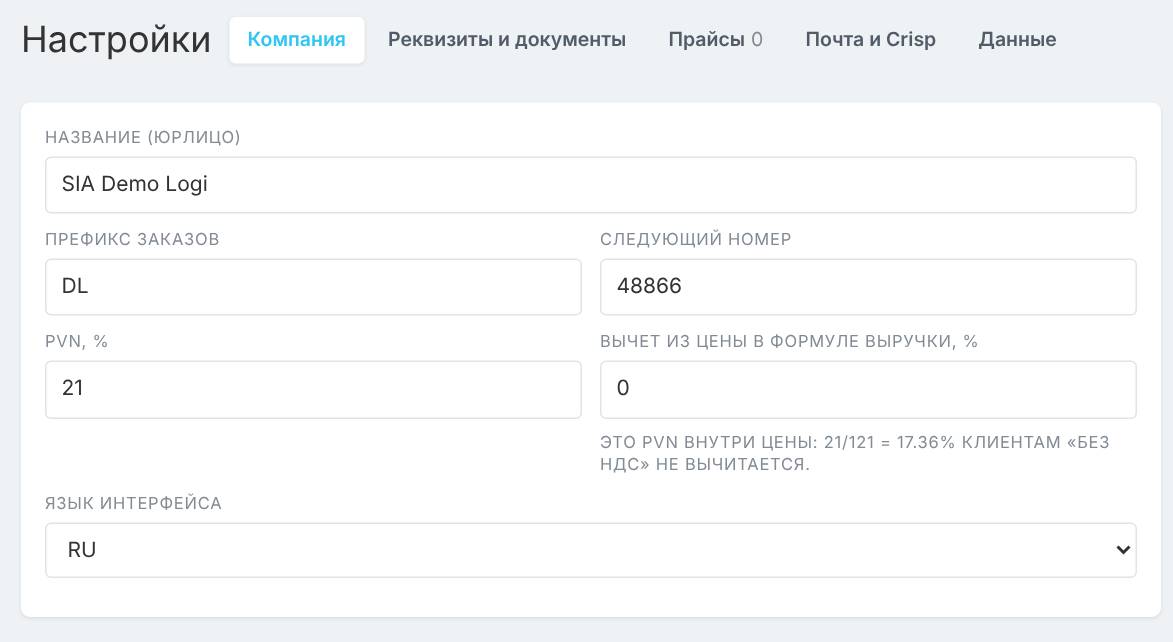
Company → Settings
Company: name, prefix and next order number, PVN 21 %, interface language.
Details and documents: registration number, bank, IBAN, signature — printed on quotes, contracts and invoices.
Price lists: upload your suppliers’ price lists — quotes are calculated from them.
E-mail and Crisp: customer e-mails and website chats automatically become requests.
04 / 15
Step 3 · Team
Departments and employees
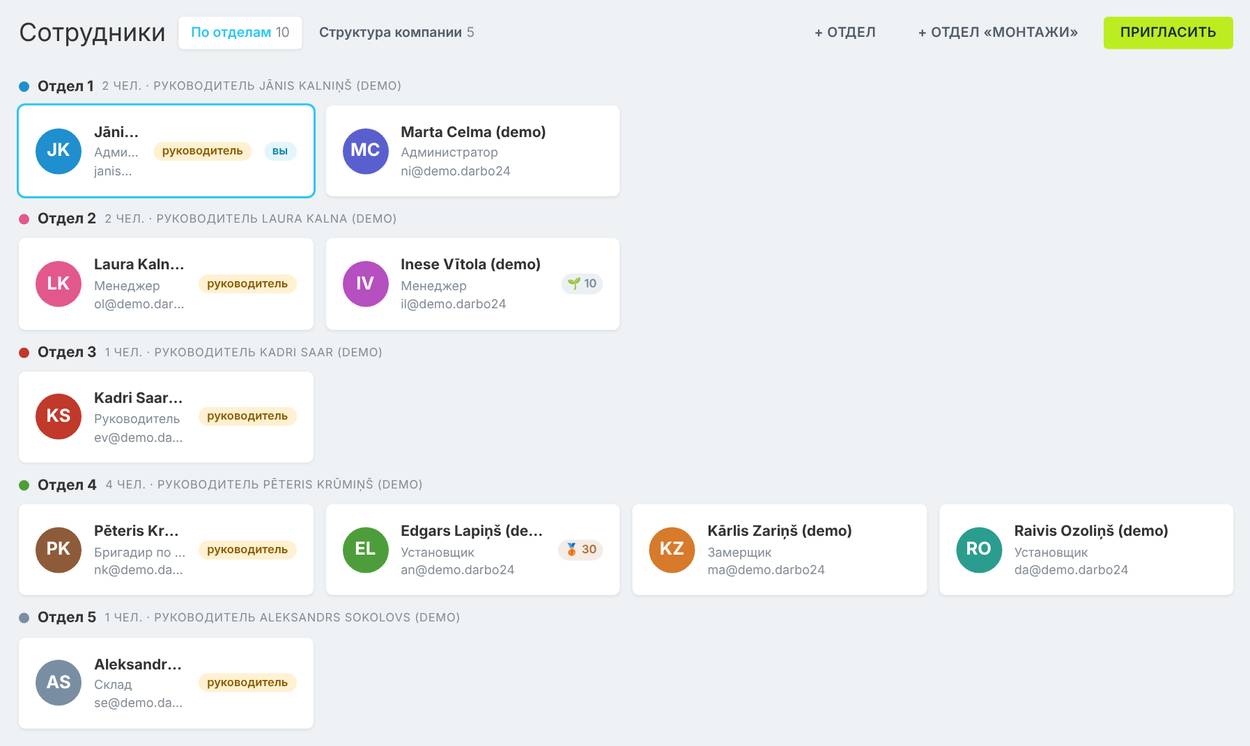
Company → Employees
Rename Department 1…5 to suit you or click «+ Department». Each department has a manager and its own chat.
«Invite»: name, e-mail, department, job title and role → «Send invitation».
The employee receives an e-mail with a link, logs in and sets their own password.
💡 Companies of up to 50 people are covered by one plan; beyond that, +3,75 € per employee.
05 / 15
Step 4 · Access
Roles & permissions
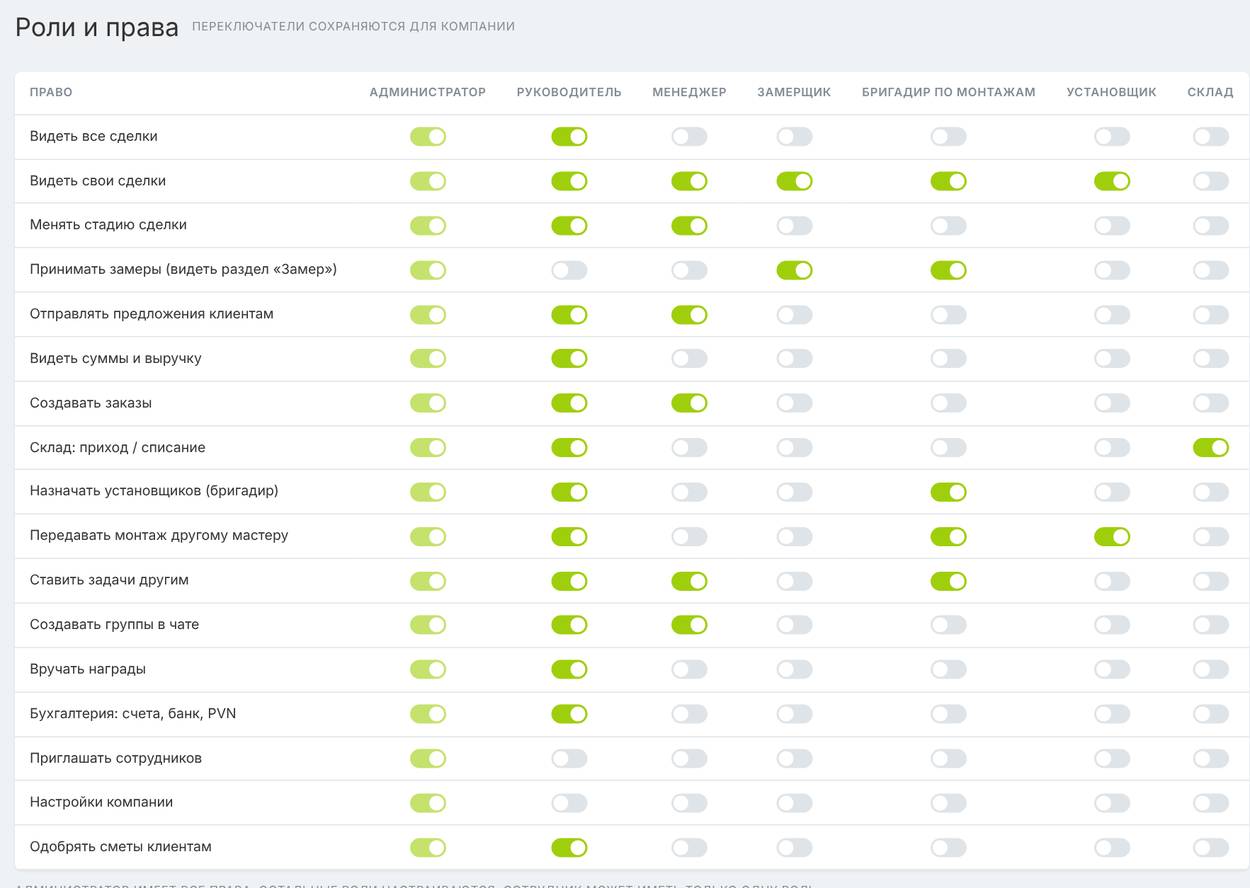
Company → Roles & permissions
Roles: administrator, manager, sales manager, measurer, crew leader, installer, warehouse.
Each toggle is a permission: see amounts and revenue, create orders, warehouse, accounting, invite people.
Changes take effect immediately across the whole company.
💡 Usually only the owner sees margins and revenue — switch off «See amounts and revenue» for everyone else.
06 / 15
Step 5 · Sales
Requests: nothing gets lost
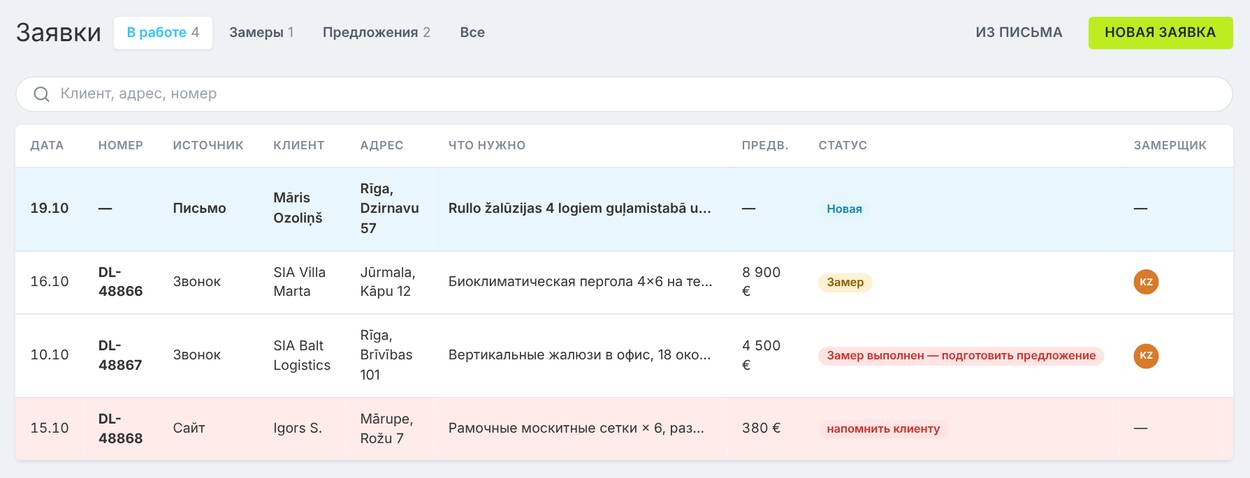
Sales → Requests
Requests come in from e-mails, website chat and phone calls. To add one manually, use «New request» or «From e-mail».
Assign a measurer and a time — the request moves to the «Measurements» tab and the measurer sees the address on their phone.
Darbo AI suggests what to ask the customer and drafts a reply.
07 / 15
Step 6 · Sales
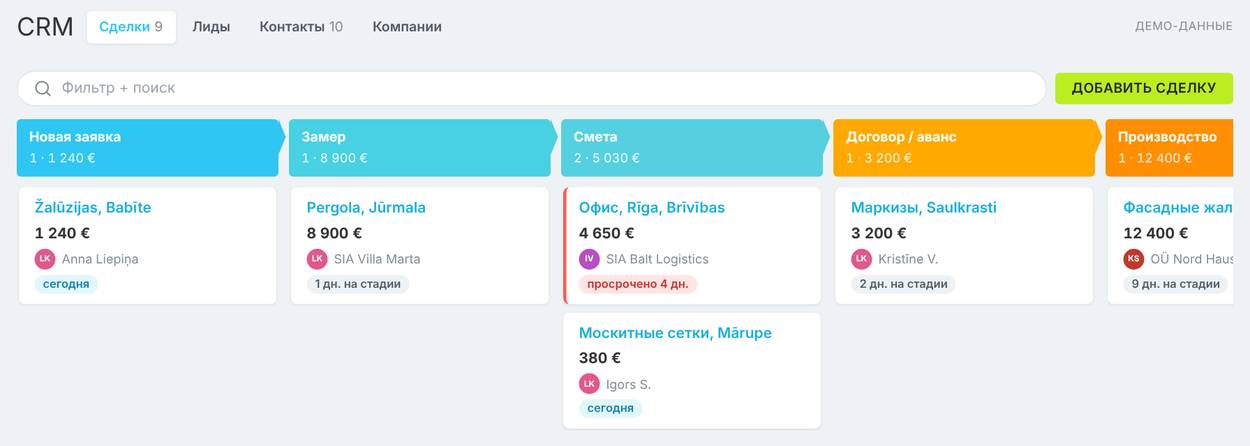
CRM: every deal at its own stage
Sales → CRM
«Add deal»: customer, phone, site address, products, amount, source.
Drag the card through the stages: New request → Measurement → Quote → Contract / deposit → Production → Installation.
The Leads, Contacts and Companies tabs hold your entire customer base.
08 / 15
Step 7 · Measurement and quote
Quotes from measurements — at your prices
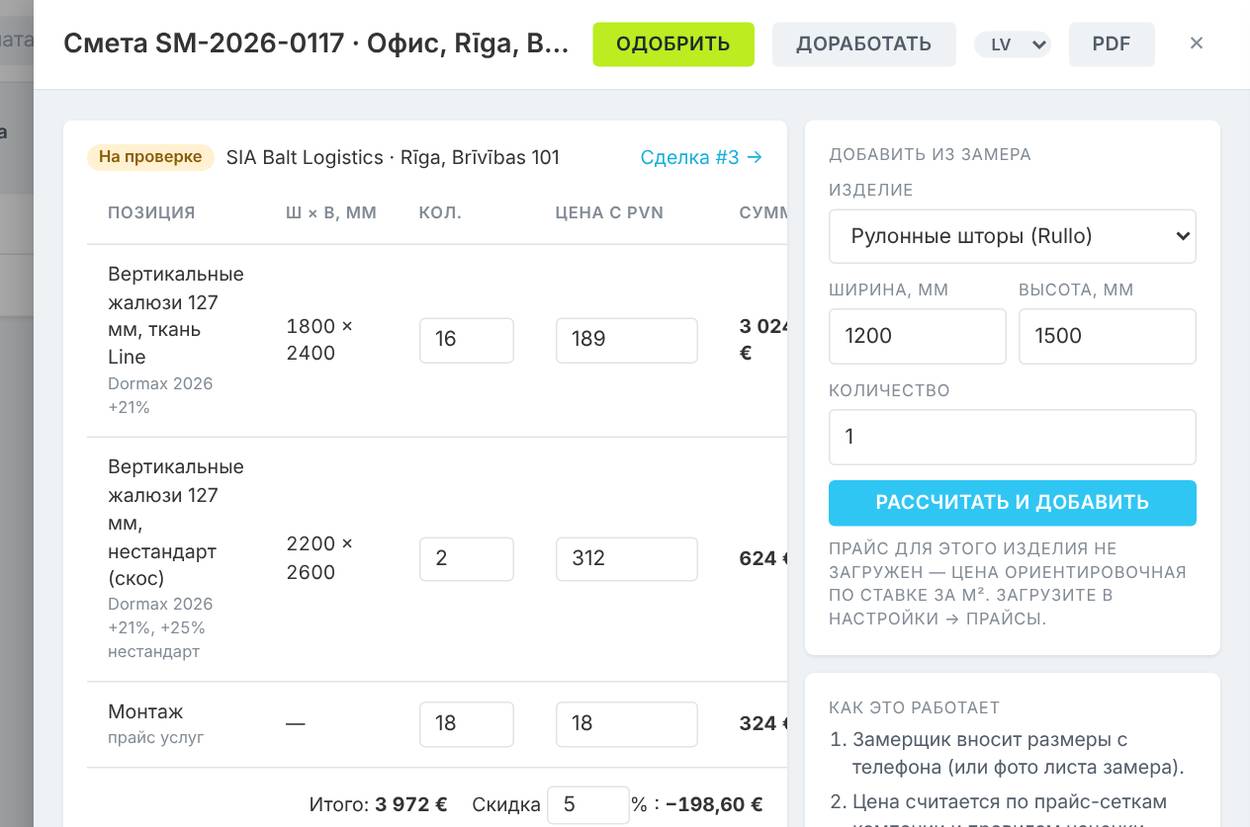
Sales → Estimates
The measurer enters dimensions from their phone or photographs the measurement sheet.
Choose a product, width and height → «Calculate and add»: price from the price list plus your mark-up, with volume discounts.
The manager reviews it → «Approve» → a PDF goes to the customer in their language (LV, RU, EN…).
09 / 15
Step 8 · Order
Orders with their own numbers
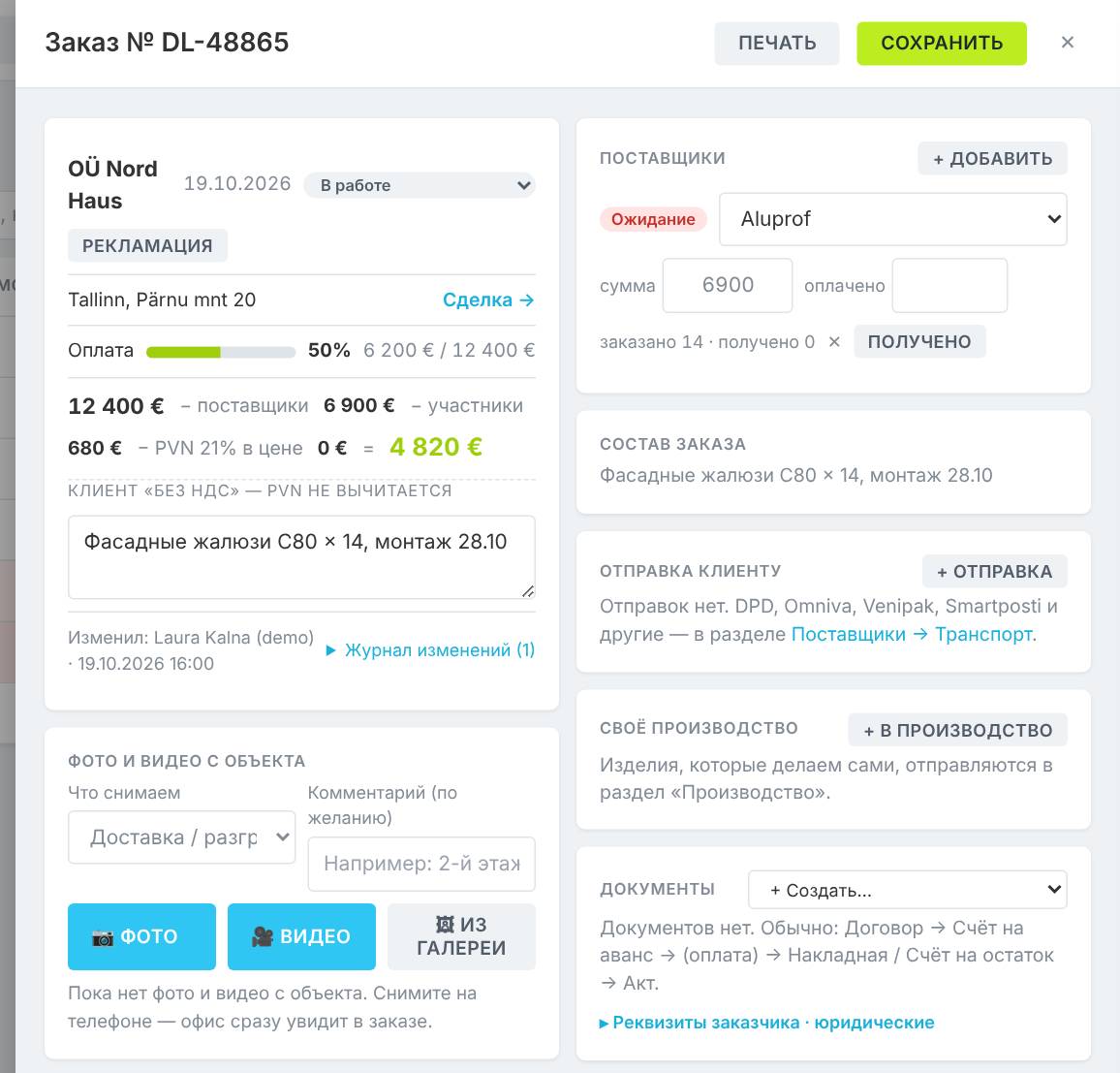
Orders & sites → Orders
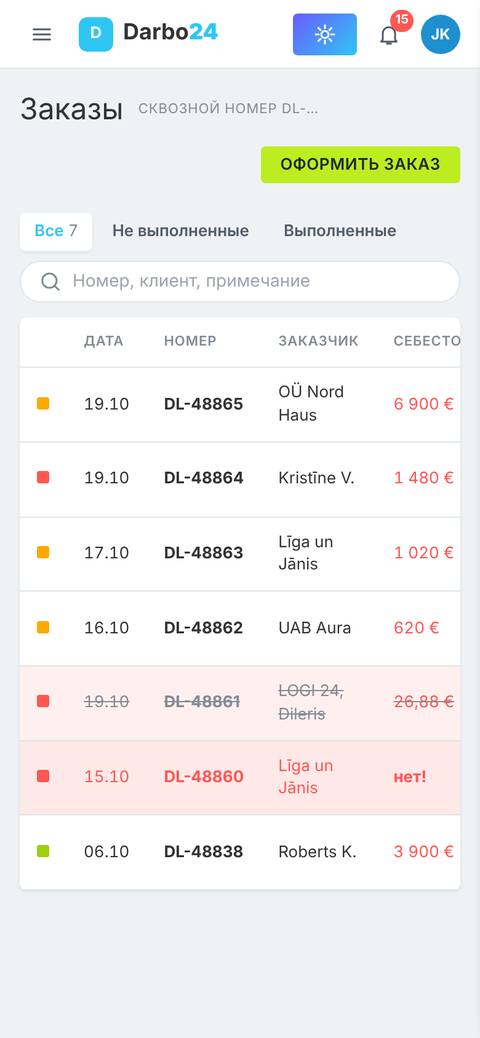
«Place order» — the number is assigned automatically: DL-48866, DL-48867…
The order card holds suppliers, production, documents (contract, deposit invoice, delivery note, completion certificate) and files.
Payments → «+ Add»: deposit and balance. You can see how much the customer still owes.
💡 Cash: record who is holding the money — «Finance» shows who has not yet handed it in.
10 / 15
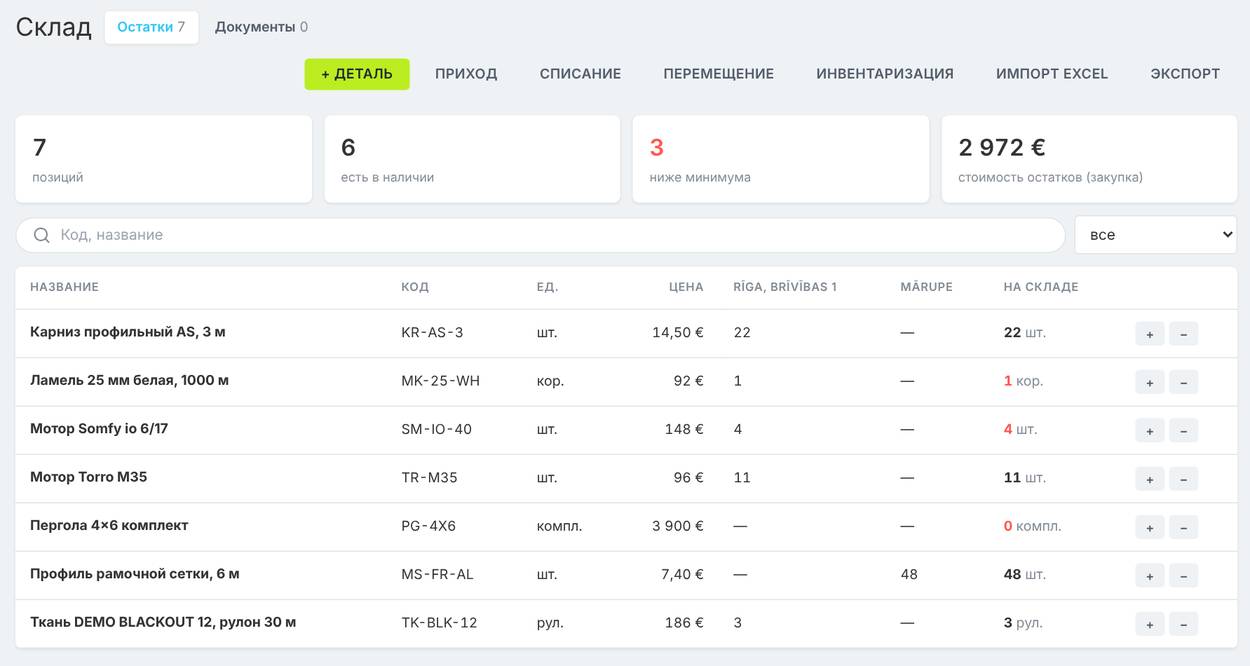
Step 9 · Production & stock
Products, production, warehouse
Production & stock
Products: templates for windows, curtains, ceilings, wardrobes — parts from the warehouse are calculated from the dimensions.
Production: «+ To production» → «Done». Production wages are calculated automatically.
Warehouse: goods in, write-offs, transfers, stocktaking, import from Excel. Items below minimum are shown in red.
11 / 15
Step 10 · Installation
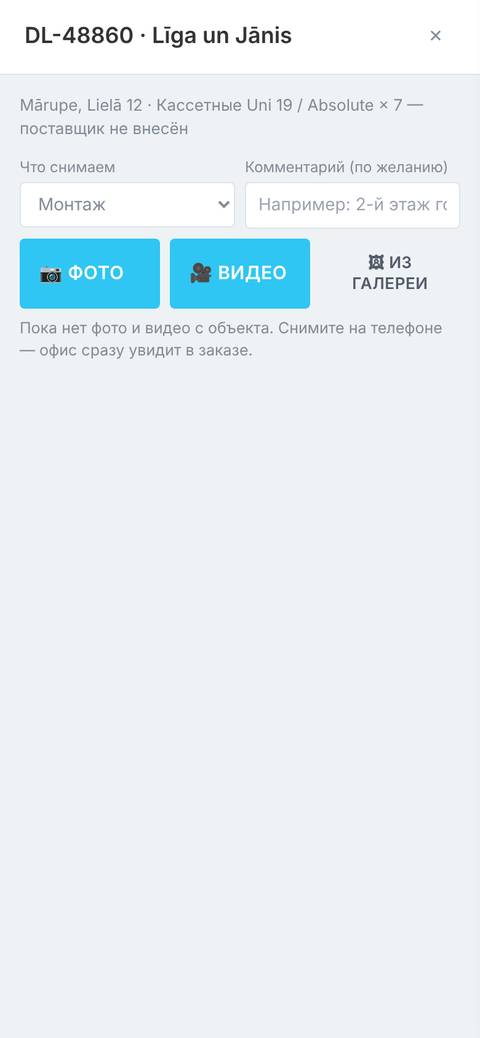
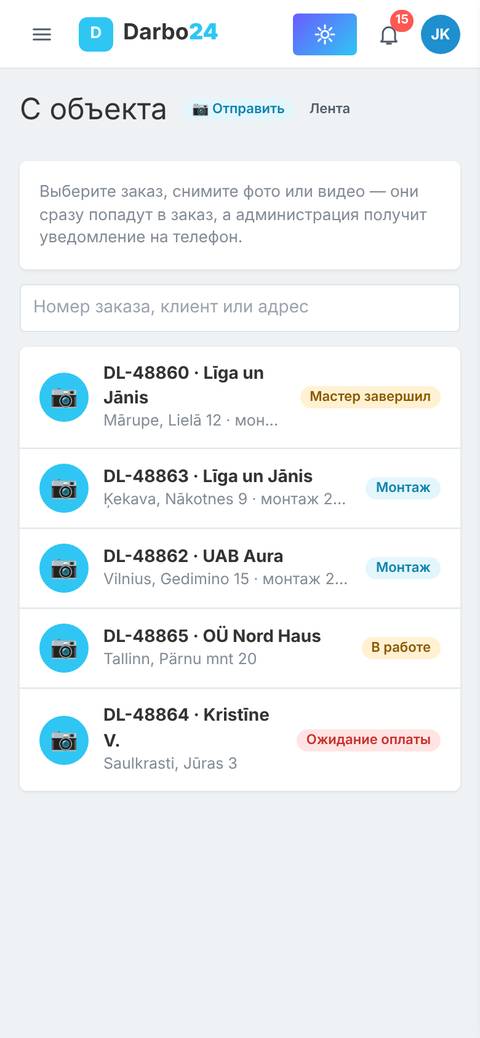
Photos and videos from site — straight into the order
Orders & sites → From site
The installer opens «From site» on their phone and selects the order.
They choose a stage — measurement, delivery, installation, problem — and tap «Photo» or «Video».
The office is notified straight away; photos are stored in the order history with the date and author.
12 / 15
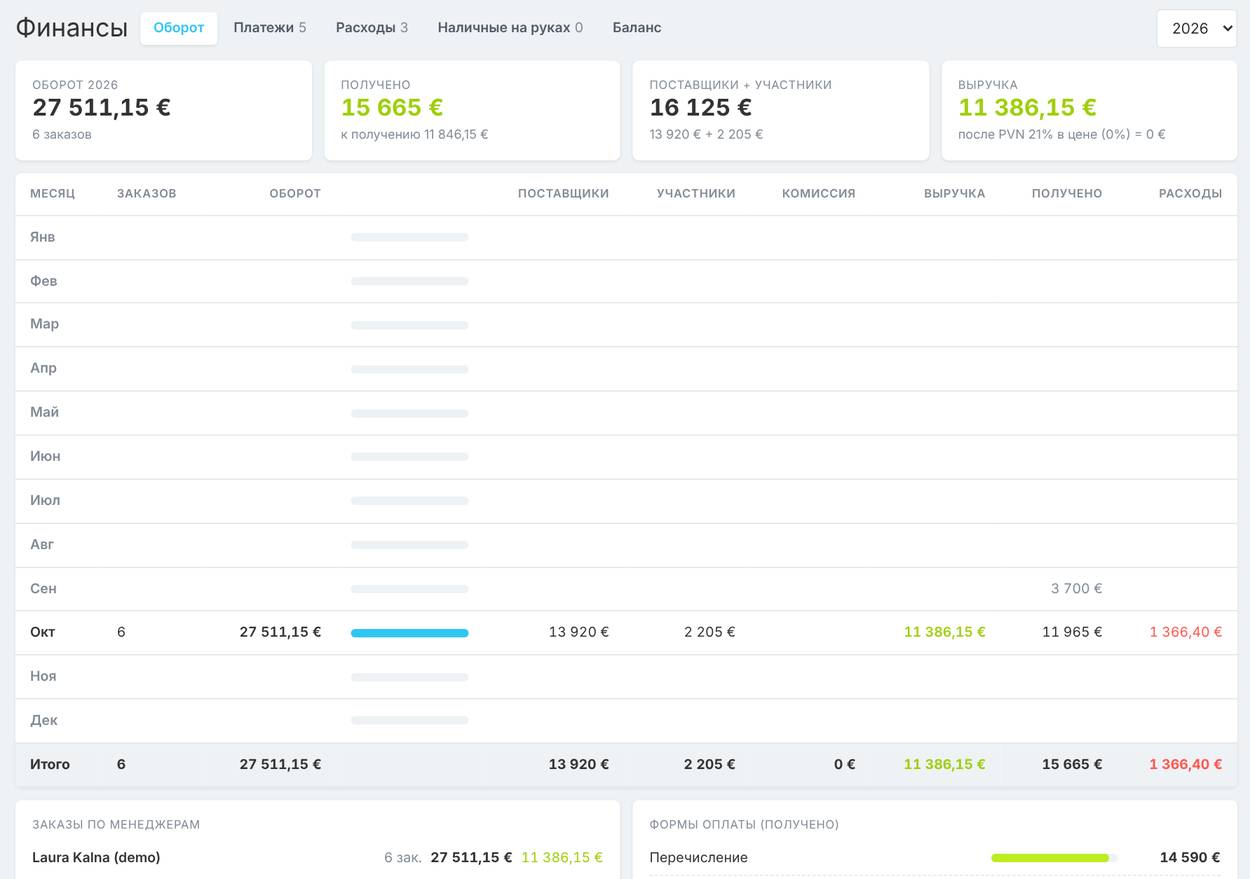
Step 11 · Money
Money — every day, not once a month
Money → Finance
Turnover by month and by manager, Payments, Expenses by category, Balance.
Upload a bank statement (FiDAvista, camt.053) — payments are matched to their orders automatically.
Cash in hand: which crew member has the money, «Handed in» — and the till balances.
13 / 15
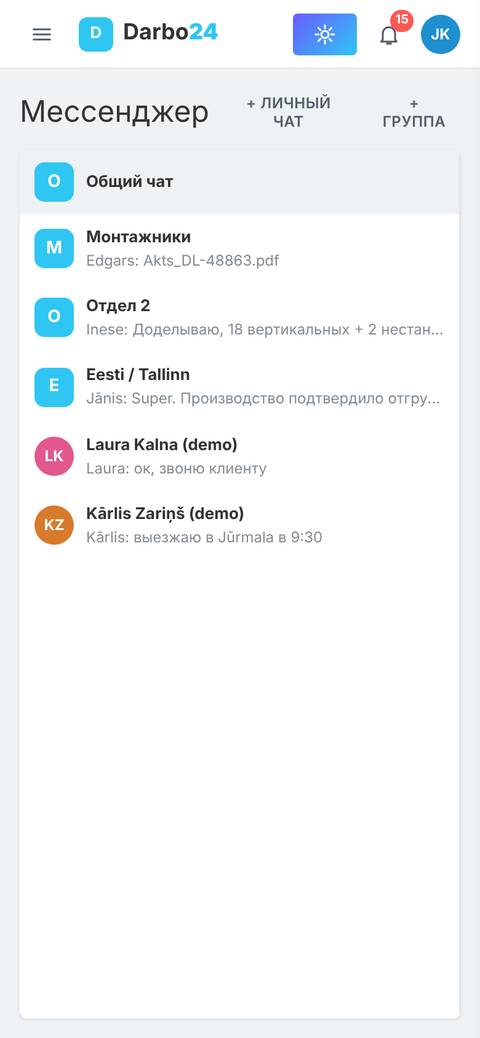
Step 12 · Team
Tasks, calendar and chats
Team
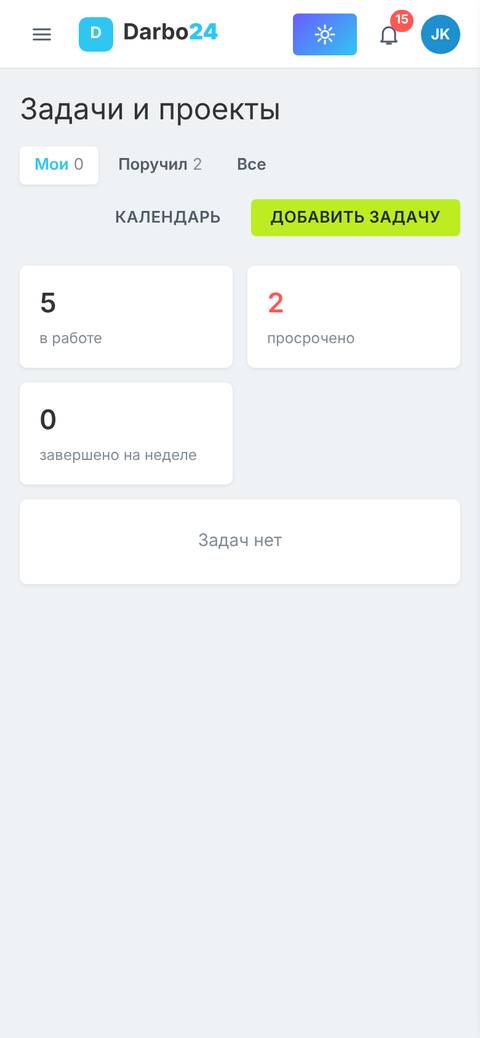
Tasks & projects: «Add task» with a deadline and assignee, photo report right inside the task.
Calendar: measurements, installations and tasks — drag them to another day.
Messenger: private chats, groups, departments, files. Push notifications to your phone.
14 / 15
On your phone
Darbo24 as an app
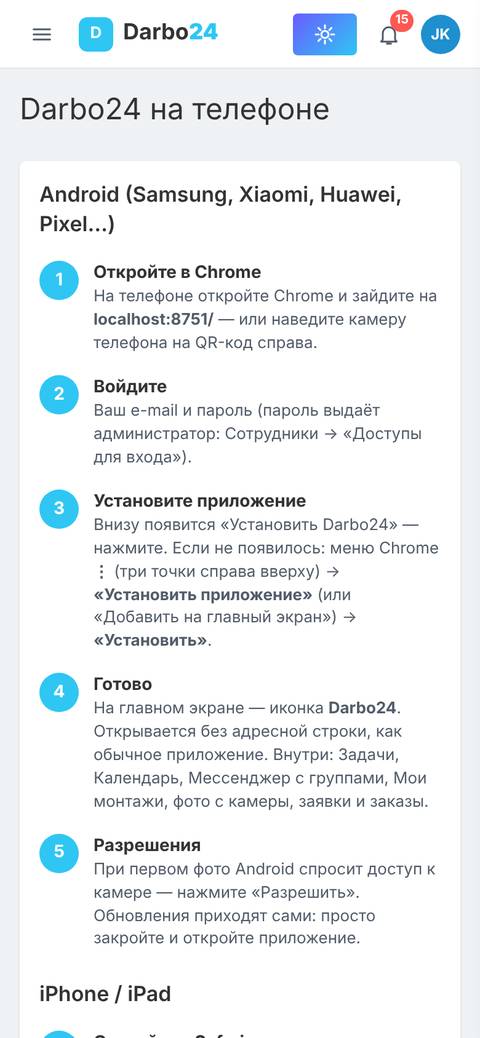
Company → On phone
Android: open the link in Chrome → «Install app».
iPhone: open it in Safari → «Share» → «Add to Home Screen».
The page has a QR code and a «Send link via WhatsApp» button — share it with your crew.
💡 Something missing? Company → What’s missing: tell us and we will add it.
15 / 15